Part II — Desktop Computers · Chapter 7
Desktop Troubleshooting
≈ 4 min read · Print / save as PDF
Start with the symptom: no power, no picture, restarts, blue screens, or slowness. Each one has its own short checklist below. Strip the PC down to the minimum and add parts back one by one.
Symptom 1: No power at all (no fans, no lights)
| Step | Check |
|---|---|
| 1 | AC cord, outlet, PSU rear switch, voltage selector (on older PSUs) |
| 2 | 24-pin and EPS connectors fully seated |
| 3 | Front-panel power-switch header on the correct pins; test by briefly shorting the two PWR_SW pins with a screwdriver |
| 4 | Measure +5 VSB (purple) on the 24-pin while connected — if absent, the PSU is faulty |
| 5 | Jumper test the PSU out of the system |
| 6 | Remove the board from the case and test on a cardboard box (“breadboarding”) with only CPU, one RAM stick, cooler and PSU — rules out case shorts |
| 7 | If PSU tests good and the minimal system has no power: motherboard fault (short on a rail, failed VRM MOSFET, failed standby circuit) |
Symptom 2: Powers on, fans spin, no display (no POST)
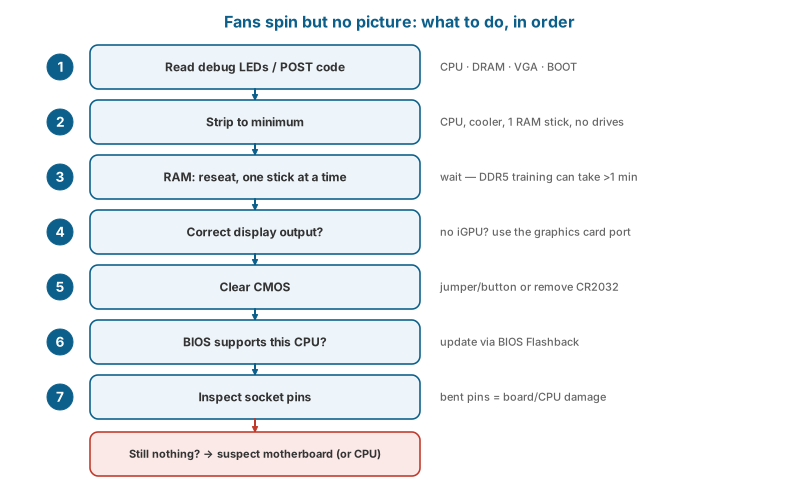
- Read the diagnostics. Most current boards have debug LEDs (CPU, DRAM, VGA, BOOT) or a two-digit POST code display — the stage at which the light stays on tells you which component failed initialisation. Look up the board’s codes in its manual. Older boards use beep codes, which differ between BIOS vendors (AMI, Award/Phoenix) and board makers — always use the board manual.
- Minimal configuration: CPU, cooler, one RAM stick in the recommended slot, integrated graphics or one GPU, no drives.
- RAM: reseat; try each stick individually in the primary slot; clean contacts with IPA. Note that first boots with new RAM or after a CMOS clear can take a long time (memory training — sometimes over a minute on DDR5 systems); do not interrupt.
- Display: if the CPU has no integrated graphics (e.g. Intel “F” models, many AMD desktop CPUs), the monitor must connect to the GPU, not the motherboard ports. Try another cable and monitor input.
- Clear CMOS.
- CPU support: BIOS update needed for this CPU?
- Inspect the CPU socket for bent pins (LGA) or the CPU for bent pins (AM4).
Symptom 3: Random shutdowns or restarts
| Possible cause | How to test |
|---|---|
| Overheating | HWiNFO temperatures under stress test; dust; dried thermal paste; failed fans or pump |
| PSU unable to handle load | Stress CPU+GPU simultaneously; swap known-good PSU |
| RAM instability (often with XMP/EXPO enabled) | MemTest86 for several passes; disable XMP and retest |
| Failing motherboard VRM | Visible damage, burnt smell, temperatures |
| Software/driver | Windows Event Viewer (look for Kernel-Power 41 — this means an unexpected shutdown; it confirms power loss but not the cause) and the Reliability Monitor |
Symptom 4: Blue screens (BSOD)
- Record the stop code (e.g.
MEMORY_MANAGEMENT,IRQL_NOT_LESS_OR_EQUAL,WHEA_UNCORRECTABLE_ERROR,CRITICAL_PROCESS_DIED,INACCESSIBLE_BOOT_DEVICE). - Read minidump files in
C:\Windows\Minidumpwith a dump analysis tool (e.g. WinDbg, or a simpler viewer) to see the driver or module involved. - Common causes: unstable RAM (test it), faulty drivers (update/roll back), failing storage (check S.M.A.R.T.), overclocking, and corrupted system files (
sfc /scannow,DISM /Online /Cleanup-Image /RestoreHealth). INACCESSIBLE_BOOT_DEVICEafter changing SATA mode (AHCI ↔︎ RAID) or moving a drive to another PC indicates a storage driver/mode mismatch.
Symptom 5: Slow performance
Check in order: storage health and type (an old HDD is the most common cause — upgrade to SSD), RAM capacity and usage, thermal throttling, malware, startup programs, background updates, a failing drive with high reallocated sector counts.
Motherboard component-level faults (desktop)
- Bulged or leaking electrolytic capacitors near the CPU VRM: replace with same capacitance, same or higher voltage, and similar low-ESR polymer type.
- Shorted VRM MOSFET: check +12 V (EPS) to ground resistance and VCORE to ground. A shorted high-side MOSFET can put 12 V onto the CPU — inspect for CPU damage before powering again.
- Corrupted BIOS: symptoms include power-on with no POST and no debug progress. Use the board’s BIOS Flashback/dual BIOS feature, or program the SPI chip with a programmer and a correct BIOS image (from the manufacturer’s site; some images need the header removed or the board’s unique data preserved — research the specific board).
Watch and read
- Watch: No-POST troubleshooting — YouTube search: PC turns on but no display troubleshooting
- Watch: Reading debug LEDs — YouTube search: motherboard debug LED meaning
- Read/use: Memtest86+ — Free open-source RAM test.
- Read/use: HWiNFO — Temperatures, sensors and full hardware inventory.
- Read/use: CrystalDiskInfo — Drive health (S.M.A.R.T.) on Windows.
Review questions
- A PC has no power at all. +5 VSB is present but shorting the PWR_SW pins does nothing. What do you suspect?
- What is the purpose of a minimal configuration test?
- A system powers on with fans but no video; the DRAM debug LED stays lit. List your next three steps.
- What does Event ID Kernel-Power 41 tell you, and what does it not?
Lab exercises
Lab 7.1 — Debug LEDs. Remove RAM, then GPU, then the CPU power connector, and record the debug LED / POST code behaviour for each.
Lab 7.2 — Stress testing. Run CPU, GPU and combined stress tests with temperature logging. Write a one-page thermal report.
Progress is saved in this browser.